

You put it to sleep at 92%. Eight hours later it’s at 18%, or it won’t even wake up until you plug it in. If this has happened to you more than once, don’t reach for the “battery replacement” conclusion yet. In most cases, the battery is fine. Something is keeping your Mac awake when it thinks it’s asleep, and there’s usually a specific, findable reason.
Table Of Content
- Quick Answer
- Key Takeaways
- Symptoms of Overnight Battery Drain
- Why It Happens
- 15 Fixes That Actually Work
- 1. Turn off Power Nap
- 2. Disconnect Bluetooth accessories before closing the lid
- 3. Run pmset -g assertions and read what it tells you
- 4. Update macOS
- 5. Reset the SMC ( Intel Macs only )
- 6. Check your Find My settings
- 7. Turn off Wake for Network Access
- 8. Actually quit apps instead of just closing their windows
- 9. Check Activity Monitor’s Energy tab for a stuck process
- 10. Turn off “Hey Siri”
- 11. Fully disconnect docks and external displays
- 12. Reset NVRAM ( Intel Macs only )
- 13. Check Battery Health and cycle count before assuming it’s software
- 14. Pause large backups before bed
- 15. Shut down instead of sleeping, as a stopgap
- How to Check Battery Health
- How to Check Battery Cycle Count {#cycle-count}
- How to Find Apps Draining Battery
- Using Activity Monitor
- Using Battery Settings
- Using Terminal
- Apple Silicon vs. Intel: What’s Different
- Apple Silicon (M1 through M4 and later)
- Intel Macs
- Common Mistakes
- Prevention Tips
- Troubleshooting Checklist
- FAQ
- Conclusion
This actually happened at scale in January 2022. After the macOS Monterey 12.2 update, thousands of Mac owners watched their laptops go from full to empty overnight for no obvious reason. People dug into Terminal logs and found their Macs were waking up every few seconds all night because of a Bluetooth bug, dropping into a state Apple’s own logs label “DarkWake from Deep Idle.”
Apple confirmed it and patched it in 12.2.1. The point of that story isn’t the specific bug, it’s that sleep-state battery drain is almost always diagnosable, not mysterious, and Terminal is usually where you find the answer, not System Settings.
Below is what to check, in the order that actually matters, plus the exact commands to prove what’s happening on your machine instead of guessing.
Quick Answer
Losing more than a few percent an hour in sleep is almost always caused by one of three things: Power Nap or a background process waking the Mac repeatedly, a Bluetooth accessory refusing to let the Mac drop into deep sleep, or a battery that’s simply logged too many charge cycles to hold power efficiently. Open Terminal and run pmset -g assertions. It will name the exact process keeping your Mac awake, which beats guessing your way through Settings panels.
Key Takeaways
- 1-2% per hour overnight is normal and not worth worrying about.
- Bluetooth accessories are the single most common cause of unexplained drain, and this isn’t a guess, it’s been the root cause of Apple’s own acknowledged bugs before.
pmset -g assertionstells you, by name, which app or daemon is preventing sleep. Nothing in System Settings gives you that level of detail.- A battery past roughly 1,000 cycles or flagged “Service Recommended” will drain unpredictably no matter what you change in software.
- Don’t blame the battery first. Blame it last, after you’ve ruled out software.
Symptoms of Overnight Battery Drain
Not all overnight drain looks the same, and the pattern you’re seeing is actually a clue:
- Losing 20-50% overnight with the lid closed, no obvious cause
- The percentage in the menu bar doesn’t line up with what you remember seeing last night
- The Mac is warm when you open it, which it shouldn’t be after eight hours asleep
- The fan kicks in the moment you wake it, meaning it was doing real work while “asleep”
- A dead Mac in the morning despite starting well above 50%
- Drain that got noticeably worse right after a macOS update
The first four usually point to software or a connected accessory, and you can generally fix them tonight. The last two need a slightly different approach, which is why this guide splits Apple Silicon and Intel troubleshooting into their own sections further down; post-update behavior isn’t identical across chip generations.
Why It Happens
A “sleeping” Mac isn’t off. It’s in a low-power state that keeps just enough running to wake instantly, stay reachable for Handoff, and sync with iCloud on a schedule. That baseline costs a small amount of power, and Apple designed it that way on purpose.
The trouble starts with what macOS calls a power assertion. Any process, background app, or connected accessory can ask the system to stay partially awake, “don’t let the display sleep,” “don’t let the system idle,” and so on. These are supposed to clear themselves in seconds. When one doesn’t, and nothing releases it, your Mac can sit there all night in a semi-awake state that looks identical to normal sleep from the outside but burns through the battery like it’s doing actual work. Because, in a sense, it is.
Power Nap makes this worse by design, not by accident. It deliberately wakes core parts of the system on a schedule to check mail and iCloud. That’s a reasonable tradeoff on a well-behaved Mac. On a Mac with a stuck process or a chatty Bluetooth mouse, it compounds an existing problem instead of causing a new one.
15 Fixes That Actually Work
1. Turn off Power Nap
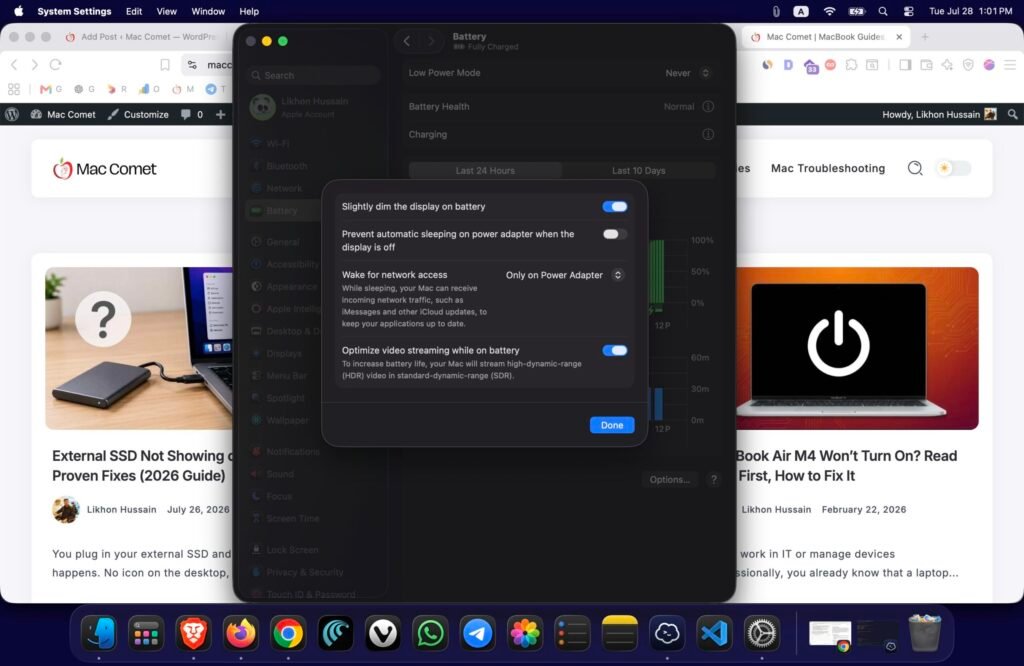
This is the first thing to try, not because it’s always the culprit, but because it’s the fastest to rule out and it’s genuinely responsible for a large share of complaints. Power Nap wakes your Mac periodically to check email and iCloud even with the lid closed. Go to System Settings > Battery > Options and switch it off.
2. Disconnect Bluetooth accessories before closing the lid
Given what happened with macOS 12.2, this deserves more weight than most guides give it. A Magic Mouse or Magic Keyboard left paired can prevent deep sleep because the Bluetooth radio has to stay semi-active to detect input instantly. If you’re not docked with an external keyboard and mouse overnight, turn Bluetooth off before closing the lid, or at minimum power down the accessory itself.
3. Run pmset -g assertions and read what it tells you
This is the diagnostic step everything else in this guide leads back to. Before you close the lid tonight, open Terminal and run:
pmset -g assertions
Look for PreventUserIdleSystemSleep or PreventSystemSleep set to 1. Next to it, you’ll see the actual process name responsible. It’s often something unglamorous, a video call app that didn’t fully quit, a download manager, or a helper process from a peripheral’s driver. Quit that specific thing and check again.
4. Update macOS
Apple has shipped point releases specifically to fix sleep-related drain more than once, 12.2.1 being the clearest example. If you’re behind, go to System Settings > General > Software Update before doing anything more invasive. This sounds obvious, but it’s skipped constantly because people assume a fresh update caused the problem rather than fixed it.
5. Reset the SMC ( Intel Macs only )
The System Management Controller governs sleep, charging, and thermal behavior on Intel Macs specifically. When it gets into a bad state, a Mac can behave as if it’s asleep while actually running background tasks. There’s no equivalent step on Apple Silicon; see the chip-specific section below instead of trying to force this on an M-series Mac.
6. Check your Find My settings
Find My keeps your Mac periodically reachable so it can be located if lost, which costs a small amount of battery by design. If tracking a laptop that never leaves your desk isn’t worth it to you, it’s under System Settings > Apple ID > Find My. This is a minor drain source on its own, but it stacks with everything else on this list.
7. Turn off Wake for Network Access
This lets other devices on your network wake your Mac remotely, useful for a Mac mini acting as a file server, mostly pointless on a laptop. Find it in System Settings > Battery > Options. Leaving it on means literally anything on your network with the right request can pull your Mac out of sleep at 3 a.m.
8. Actually quit apps instead of just closing their windows
Closing a Chrome or Slack window doesn’t quit either app. Both, along with most Electron-based software, keep syncing and checking for updates in the background. If you routinely leave a dozen apps “closed” but running, check what’s actually still open (Command-Tab through your running apps) before you close the lid.
9. Check Activity Monitor’s Energy tab for a stuck process
Occasionally something gets caught in a loop, Spotlight’s mds_stores re-indexing after an update is a repeat offender, and it keeps the CPU busy through the night. Sort the Energy tab by Avg Energy Impact and see what shows up that you didn’t open yourself.
10. Turn off “Hey Siri”
Voice activation keeps the microphone subsystem in a low-power listening state at all times. Alone, it’s a small drain. Combined with three or four other always-on features, it adds up in a way that’s easy to underestimate. System Settings > Siri & Spotlight if you don’t use it.
11. Fully disconnect docks and external displays
Some third-party USB-C hubs, particularly older ones with outdated firmware, send a signal that blocks the Mac from ever reaching true sleep, so it just sits there “awake with the screen off” all night. If you dock your MacBook, disconnect it fully before closing the lid rather than assuming closing the lid alone puts it to sleep.
12. Reset NVRAM ( Intel Macs only )
NVRAM holds small persistent settings, some power-related, that can get corrupted. Hold Option + Command + P + R at startup for about 20 seconds. Like the SMC reset, this doesn’t exist in the same form on Apple Silicon.
13. Check Battery Health and cycle count before assuming it’s software
If you’ve worked through the fixes above and drain hasn’t improved, stop troubleshooting settings and check the hardware. Full instructions are in the dedicated section below.
14. Pause large backups before bed
A Time Machine backup or an iCloud Photos sync that’s mid-upload when you close the lid will keep the Mac working straight through a Power Nap window instead of idling. If you just imported a big photo library or plugged in a Time Machine drive for the first time in weeks, that’s probably why tonight is worse than usual.
15. Shut down instead of sleeping, as a stopgap
This isn’t a fix, it’s a workaround, and it’s fine to treat it that way. If you need guaranteed battery in the morning and haven’t solved the underlying issue yet, a full shutdown draws essentially nothing. Apple Silicon Macs boot in well under 20 seconds, so the cost is smaller than people assume.
How to Check Battery Health
Apple menu > System Settings > Battery > Battery Health.

You’ll see either “Normal” or “Service Recommended,” or a Maximum Capacity percentage on newer macOS versions showing how much of the original design capacity is left. Once that number drops to around 80% or below, persistent drain is usually the battery aging out, not a setting you haven’t found yet.
How to Check Battery Cycle Count {#cycle-count}
Hold Option, click the Apple menu, choose System Information, then select Power under Hardware. Cycle Count is listed there.
A cycle equals one full 0-100% discharge, cumulative, not one charge session. Most Apple laptop batteries are rated for around 1,000 cycles before capacity loss becomes noticeable.
| Cycle Count | What to Expect |
|---|---|
| 0-300 | Should behave like new |
| 300-700 | Minor capacity loss, drain should still be minimal |
| 700-1,000 | Capacity loss becomes noticeable for some users |
| 1,000+ | Replacement is the honest answer if drain persists |
How to Find Apps Draining Battery
System Settings > Battery shows a per-app breakdown over the last 24 hours or 10 days. It’s less granular than Activity Monitor but faster if you just want a quick sanity check before digging further.
Using Activity Monitor
Open Activity Monitor, click the Energy tab, and sort by Avg Energy Impact rather than the instantaneous Energy Impact column, since the average accounts for what happened overnight while you weren’t watching. Anything unfamiliar sitting near the top of that list is worth investigating before you touch a single setting.
Using Battery Settings
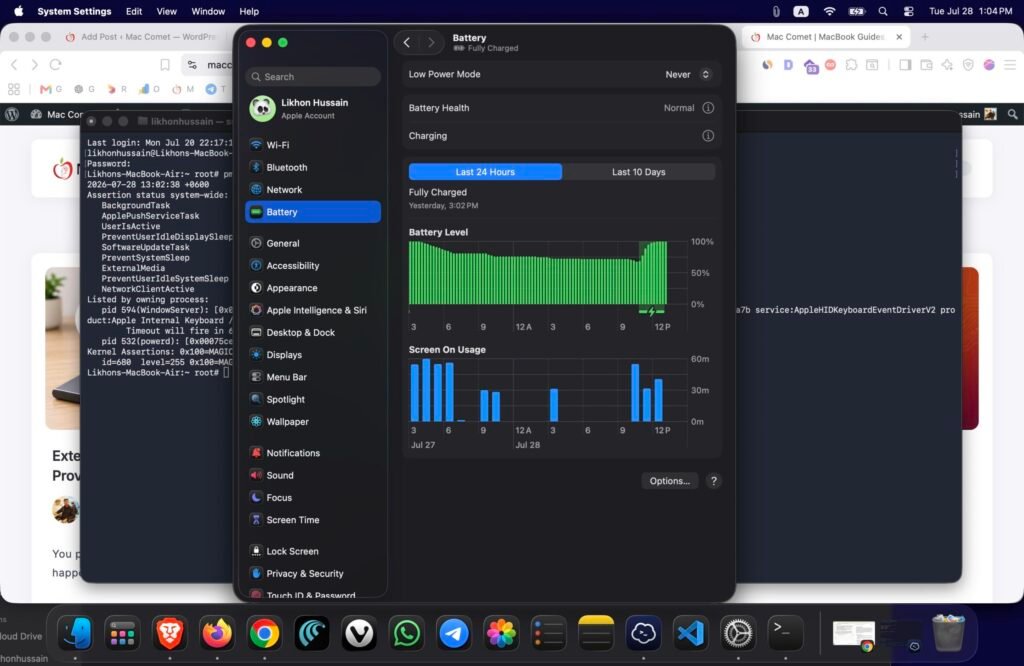
Most of the actual controls that matter, Power Nap, Wake for Network Access, and per-app usage, live in System Settings > Battery. Apple consolidated this since macOS Ventura, so it’s worth a full pass before reaching for Terminal.
[Insert Screenshot – Battery Settings]
Using Terminal
Three commands cover almost everything you’ll need.
pmset -g shows your current settings: sleep timers, whether Power Nap is on, display sleep timing. Useful for confirming a change you made in System Settings actually took effect.
pmset -gpmset -g assertions is the one that matters most. It lists every active power assertion right now, by process name, so you know exactly what’s keeping the Mac from sleeping instead of guessing.
pmset -g assertions[Insert Screenshot – Terminal pmset Output]
pmset -g log gives you a history of every sleep and wake event, with a reason code for each. Run it the morning after a bad night and search for Wake entries during hours the Mac should have been idle. This is exactly the command people used to diagnose the 2022 Bluetooth bug, and it still works the same way for whatever’s causing drain on your machine today.
pmset -g logApple Silicon vs. Intel: What’s Different
Apple Silicon (M1 through M4 and later)
M-series Macs use a deeper, more efficient sleep state than Intel Macs ever had, one that can keep iCloud sync alive at a much lower power cost. Most Apple Silicon Macs should drain under 1% per hour with Power Nap on. When they don’t, it’s rarely the hardware.
It’s almost always a Bluetooth accessory, an app with an aggressive sync schedule, or a process that got stuck after a recent update and clears up with a restart.
There’s no SMC reset on these machines. If you suspect a stuck power state, a full shutdown, ten seconds, then power back on does the equivalent job.
Intel Macs
Intel MacBooks lean more heavily on the SMC, and their sleep state is shallower than Apple Silicon’s by design. The telltale Intel failure mode is a Mac that feels warm or has fans running after supposedly sleeping all night, because the CPU didn’t drop to its lowest power state at all.
If you’re on an Intel Mac, move the SMC and NVRAM resets higher up your list; they’re tools Apple Silicon simply doesn’t have, and they resolve a real share of Intel-specific complaints.
Intel Macs are also, on average, older machines by now, so check cycle count earlier in your troubleshooting than you would on a newer M-series laptop.
Common Mistakes
- Jumping straight to “the battery is dying” before checking
pmset -g assertions. Most drain isn’t hardware. - Leaving a dock connected and assuming closing the lid put the Mac to sleep anyway.
- Skipping Terminal because it looks intimidating. It’s one command and it names the actual cause.
- Buying a used or refurbished MacBook without checking cycle count first, then troubleshooting settings for a battery problem.
- Blaming the newest macOS update by default instead of checking Activity Monitor for what’s actually running.
Prevention Tips
- Run
pmset -g assertionsoccasionally even when nothing’s wrong, so you know what normal looks like on your specific Mac - Keep macOS current; Apple has patched sleep bugs before and will again
- Disconnect Bluetooth accessories you’re not actively using
- Check Battery Health every few months once your Mac passes the two-year mark
- Don’t start a big export, backup, or upload right as you’re closing the lid for the night
Troubleshooting Checklist
| Problem | Possible Cause | Recommended Fix | Expected Result |
|---|---|---|---|
| Loses 15%+ overnight | Power Nap enabled | Disable Power Nap in Battery settings | Drain drops to under 5% |
| Warm after sleep, fans on wake | Stuck process or dock blocking sleep | Run pmset -g assertions, disconnect dock | Mac sleeps normally, cools down |
| Drain worsened right after a macOS update | Known post-update power issue | Update to the latest patch, restart | Drain returns to baseline within days |
| Dead battery despite starting above 50% | Aged battery, high cycle count | Check Battery Health and cycle count | Confirms whether replacement is needed |
| Fans spin up the instant you open the lid | Mac wasn’t actually asleep | Check Activity Monitor Energy tab overnight | Identifies the specific app responsible |
FAQ
Why does my MacBook lose battery overnight? Your Mac stays in a low-power sleep state rather than shutting down, which normally costs 1-2% per hour. Drain above that usually traces back to Power Nap, a Bluetooth accessory blocking deep sleep, or an app holding a power assertion open.
Is it normal for MacBook battery to drain while sleeping? A small amount, yes. The Mac maintains just enough activity to wake instantly and sync with iCloud. Drain past roughly 5% an hour means something is preventing proper sleep.
How much battery drain is normal overnight? Expect 5-15% over eight hours with Power Nap on, or 2-5% with it off. Losses above 20-30% overnight point to a specific, findable cause rather than normal behavior.
Should I shut down my Mac every night? Not necessary for most people, and it trades away instant wake. It’s a reasonable stopgap before travel or while you’re still tracking down a drain issue.
Does sleep mode use battery? Yes, a small amount, to maintain system state and stay reachable for features like Power Nap and Find My. Far less than being awake, but never zero.
Can macOS updates cause battery drain? Sometimes, and there’s precedent. The macOS Monterey 12.2 update caused a widely reported Bluetooth-related sleep bug in January 2022 that Apple fixed in 12.2.1. Temporary drain after any update, from Spotlight re-indexing or Photos re-analysis, is also common and usually settles within a day or two on its own.
Conclusion
Overnight drain feels like a mystery until you run one command. pmset -g assertions will usually tell you, by name, exactly what’s keeping your Mac from sleeping properly, and that’s true whether the culprit is a Bluetooth mouse, a stuck background app, or the kind of system-wide bug Apple itself has had to patch before.
Work through the fifteen fixes above in order, and if you get to the end with a battery that’s past roughly 1,000 cycles or flagged “Service Recommended,” that’s not a settings problem anymore. That’s a battery that’s done its job and needs replacing.